
How to start using a VPS for FX automated trading (EA): a guide to the steps from the application to checking that it is running
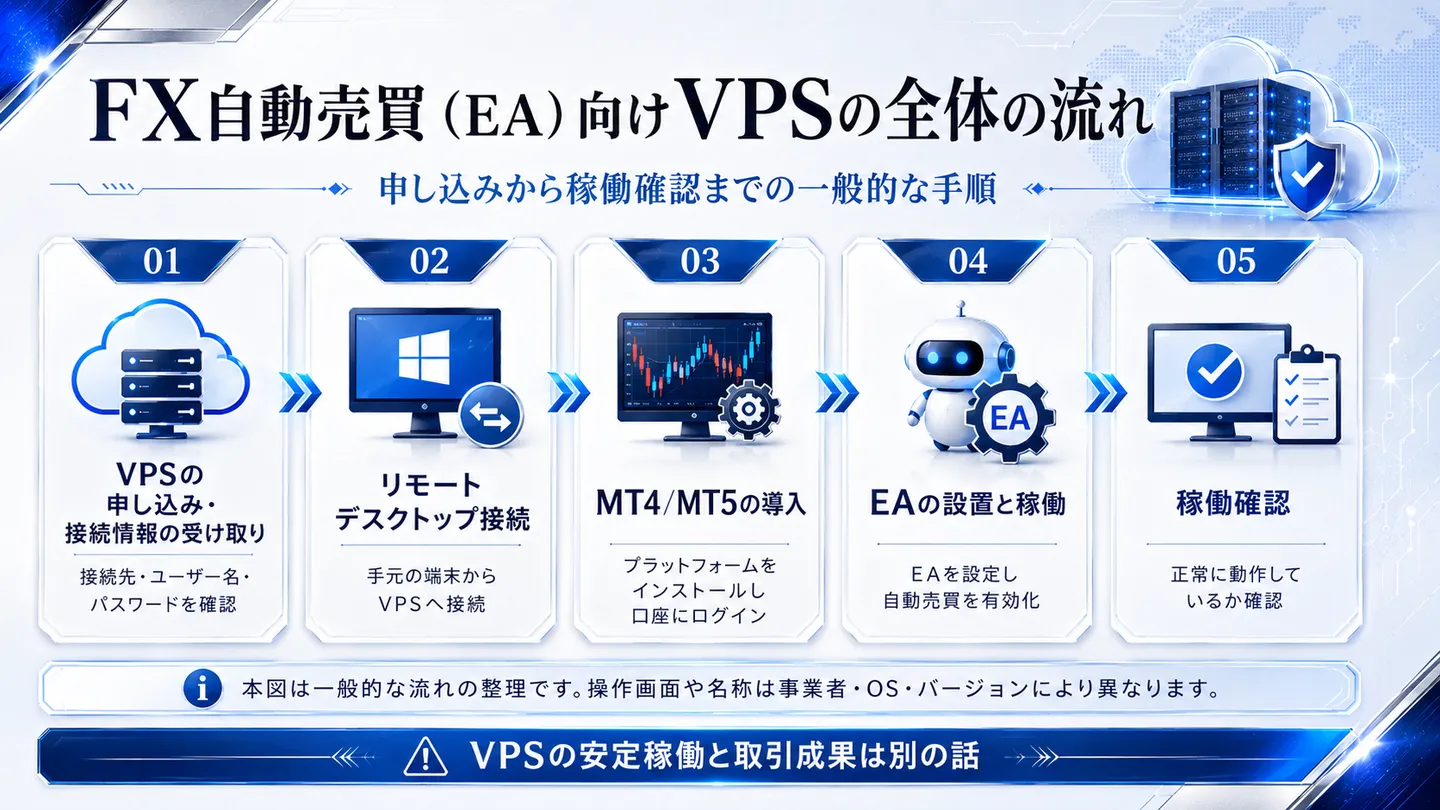
Many readers will have taken out a contract for a VPS (virtual private server) in order to run FX automated trading (EA), and will then want to check the overall picture of how to proceed from there. This article brings together the general flow of starting to use a VPS for an EA, following the steps from the application through remote desktop connection, the installation of MT4/MT5, the placing of the EA, and checking that it is running.
One important premise comes first. This article is not to the effect that setting up the environment in accordance with the steps will produce good results with an EA. The operating environment (a VPS) running stably and profits arising in trading are separate matters. An EA (automated trading) is something that gives rise to losses depending on the market environment, and it does not guarantee profits. What this article deals with is strictly the general flow of the steps for starting to use a VPS, and the points worth checking at each step.
Matters such as what a VPS is, whether to choose a home computer or a VPS, and the viewpoints from which to check a VPS — that is, the basics and how to choose — are organised in a separate article. This article does not explain those again; it confines itself to the steps of how to proceed once one has decided to use a VPS. If you wish to check matters from the basics, please refer to the related articles at the end of this article.
Introduction — what this article covers and what it does not
What this article covers is the general flow of the steps when starting to use a VPS for an EA. The specific operating screens and the names of buttons differ according to the provider contracted with, the version of the OS, and the version of the platform. For that reason, this article organises the overall picture and the points to check at each step, and takes as a premise that the actual operations are carried out together with each provider’s official guidance and the official procedures for each piece of software.
On the other hand, the following matters are not dealt with in this article.
- Selecting, recommending, ranking or comparing the fees of particular VPS providers or FX companies
- The basics of a VPS (what a VPS is), the comparison between a home PC and a VPS, and the viewpoints for choosing a VPS (these are organised in the related articles)
- Assertions about results or outcomes, such as that these steps will certainly work, or that this environment will improve performance
A VPS is not a financial product, but one of the general arrangements of information technology (IT). It is an operating environment for running an EA and a platform continuously, and it should be confirmed as a premise that it does not in itself bear on the profit and loss of trading.
The overall flow (a map of the steps)
The flow of starting to use a VPS for an EA can generally be organised into the following steps.
- Applying for a VPS and receiving the connection details — receiving information such as the connection destination, the user name and the password
- Remote desktop connection — making it possible to call up and operate the VPS’s screen from the device at hand
- Installing MT4/MT5 — installing the trading platform on the VPS and logging in to the account
- Placing the EA and setting it running — placing the EA in the prescribed location, enabling automated trading and applying it to a chart
- Checking that it is running — confirming the state in which the EA is operating
What is listed here is strictly a general flow. Because the operating screen at each step differs according to the provider and the version of the OS, please take as a premise that you proceed while also using the official guidance of the provider you have contracted with and the official procedures for each piece of software.
Step 1 — applying for a VPS and receiving the connection details
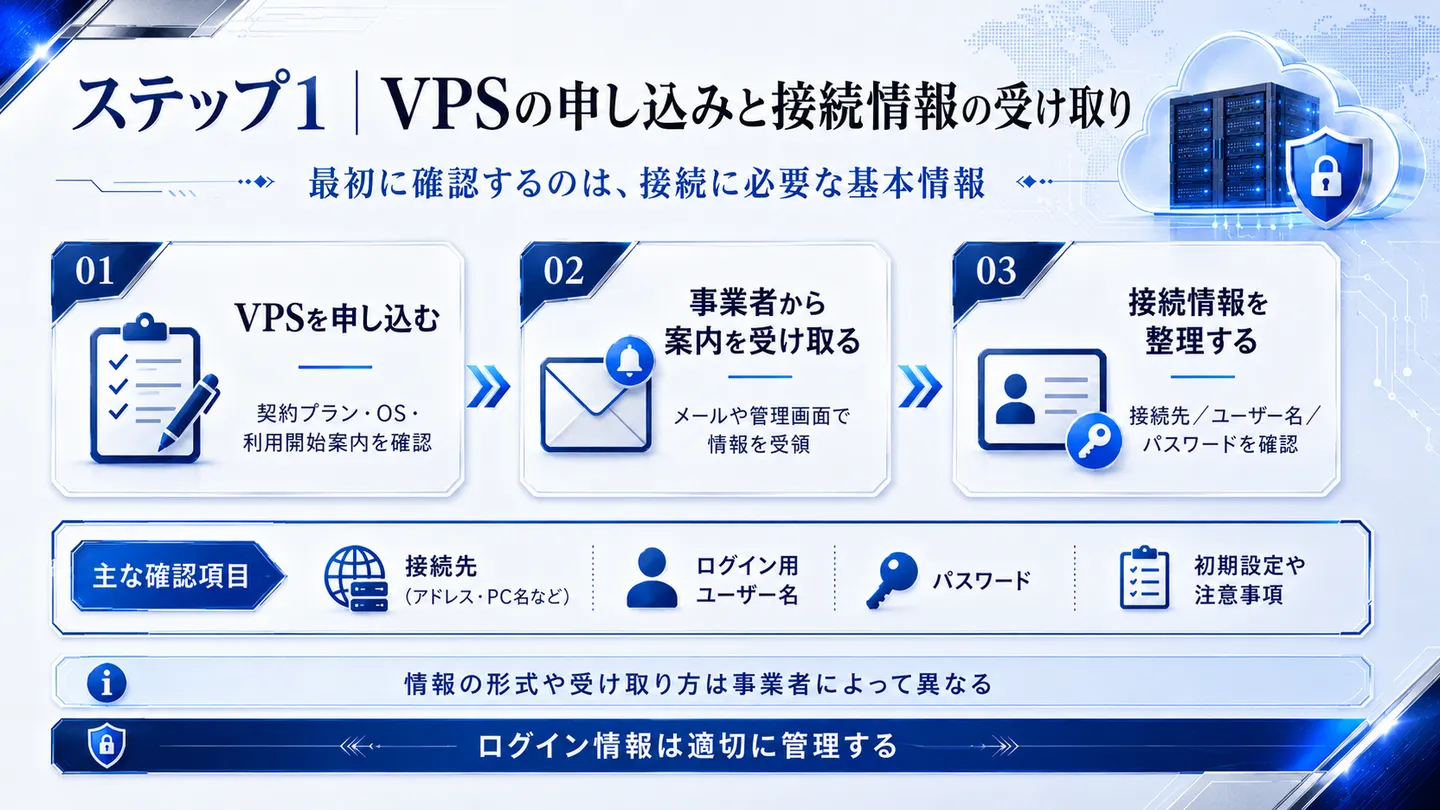
The first step is applying for a VPS and receiving the information needed for the connection.
When you apply for a VPS, the provider generally gives you connection details such as the connection destination (the address or PC name used for connecting), the user name for logging in, and the password. This is the information used when connecting to the VPS at a later step. Because the form of the information and the way it is provided differ by provider, please confirm them in each provider’s official guidance.
Note that the viewpoints of selection — which VPS to choose, and how to think about it in comparison with a home computer — are not dealt with in this article. For the basics and how to choose, please refer to the related articles.
Step 2 — connecting to the VPS by remote desktop
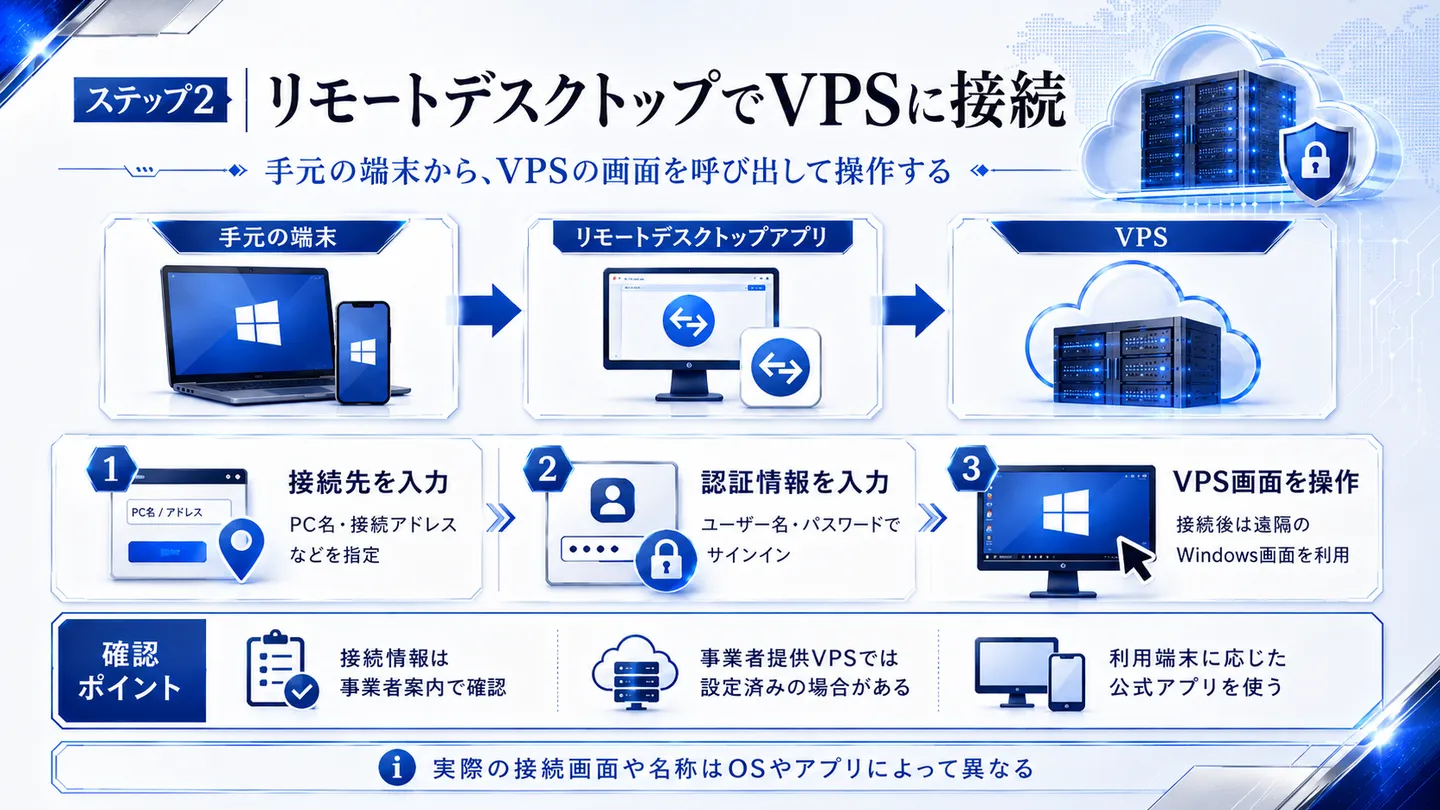
Once you have received the connection details, the next step is to connect to the VPS from the device at hand. What is used here is a remote desktop connection (RDP, Remote Desktop Protocol).
A remote desktop connection is an arrangement for calling up and operating the screen of a computer in a distant location (such as a VPS) from the device at hand. Windows comes with a Remote Desktop Connection (リモートデスクトップ接続) app as standard for making the connection. According to Microsoft’s official information, the general flow is that remote desktop is enabled on the side being connected to (the remote PC) and its PC name is noted down, and then, on the connecting side, that PC name is entered in the Remote Desktop Connection (リモートデスクトップ接続) app and the user signs in.
In general, the PC on the side being connected to needs to support remote desktop connection. However, with a VPS provided by a provider, this setting has in many cases already been made, and it can be enough for the user simply to connect using the connection details received. For the actual connection procedure and the connection details, please follow the official guidance of the provider you have contracted with.
As for the device on the connecting side, according to Microsoft’s official information there are, in addition to the Remote Desktop Connection (リモートデスクトップ接続) app on Windows, apps officially presented for macOS and for mobile. Because the names of the apps and their availability can change with the point in time, please confirm the apps officially presented for the device you are using.
Step 3 — installing MT4/MT5 on the VPS
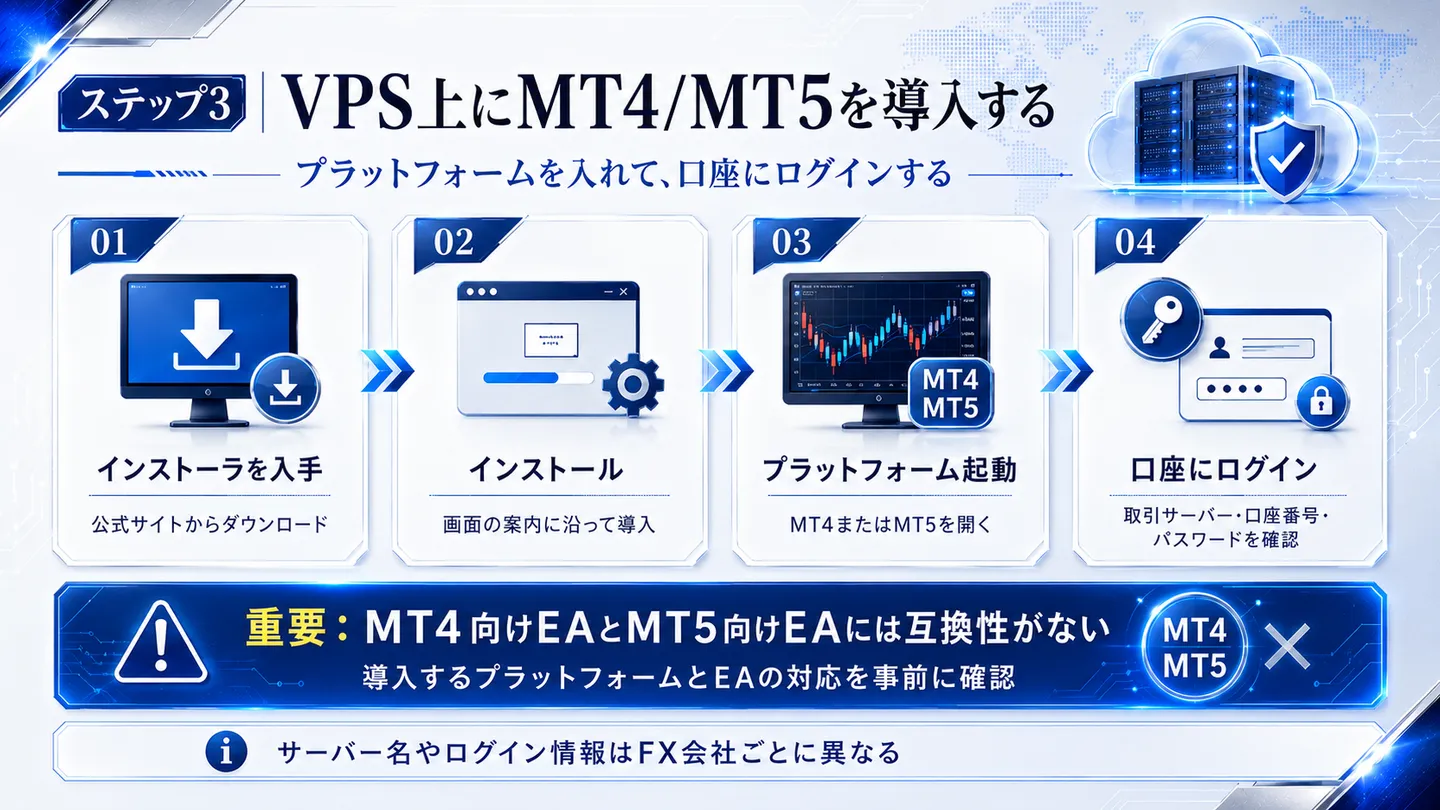
Once you can connect to the VPS, you install the trading platform (MT4/MT5) on the VPS.
MT4/MT5 (MetaTrader 4/5) are trading platforms developed by MetaQuotes, and an EA operates on them. The general flow of installation is to obtain the installer from the official site, run it, and proceed with the installation following the guidance on screen. For example, the official MetaTrader 5 help presents a flow in which the installer (mt5setup.exe) is downloaded and run, the installation destination and other matters are chosen, and the platform is started once this is complete. Please confirm where the installer is obtained from, and its version, on the official site.
Once installation has finished, you log in to your account with the FX company you use. The general flow is to select the trading server of the FX company you use and log in using your account number (login ID) and password. Because server names and login details differ by FX company, please confirm the specific procedure and the values to enter in the guidance and the official manual of each FX company.
Note that EAs for MT4 and EAs for MT5 are not compatible. Because the language and the specifications differ, an EA made for MT4 cannot be run on MT5, nor the other way round. It is necessary to confirm, before placing the EA, that the platform being installed and the EA you wish to use correspond to each other. The differences between MT4 and MT5, and the viewpoints on supported platforms, are organised in a related article.
Step 4 — placing the EA and setting it running
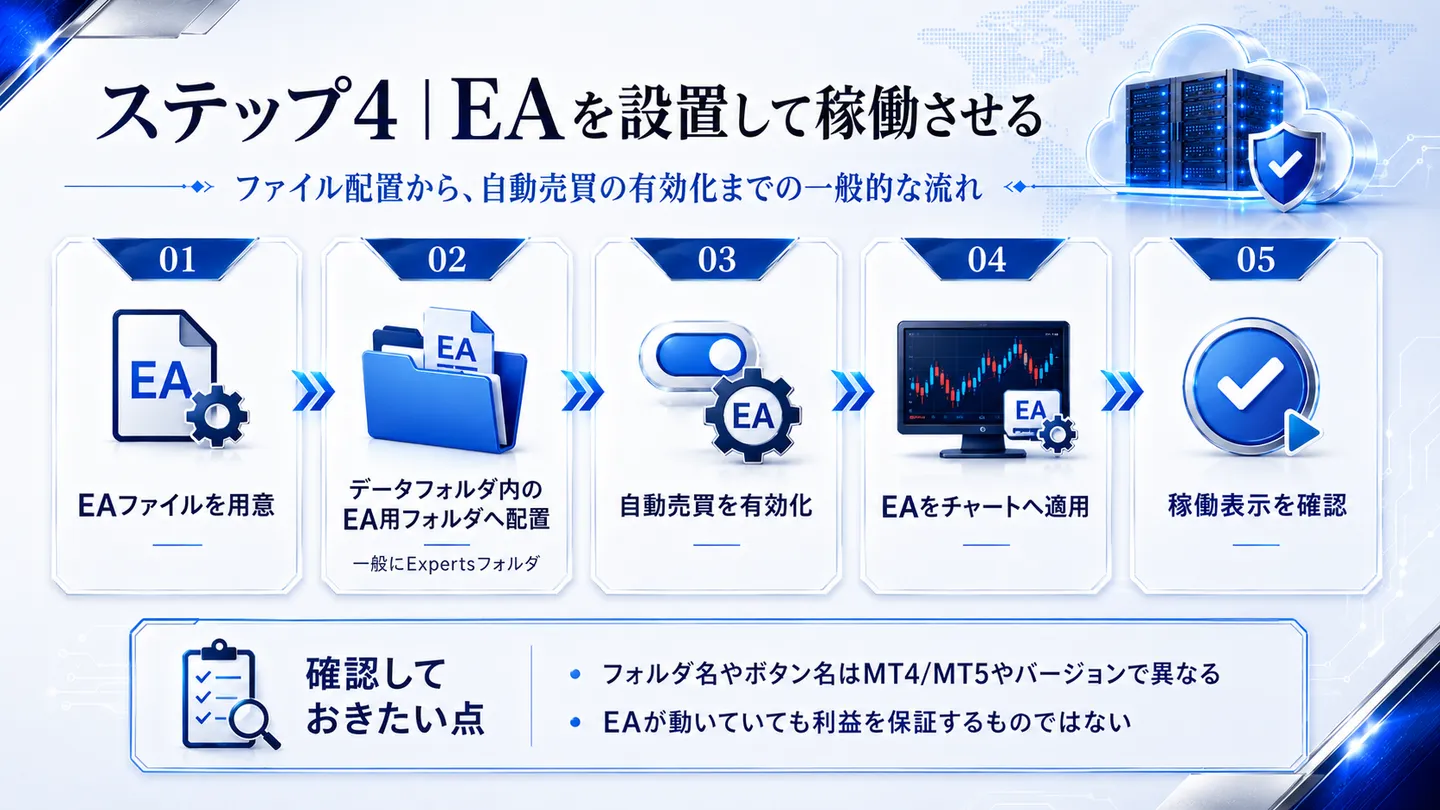
Once the platform is ready, you place the EA and set it running. From here on, because the operating screens and the names of buttons and folders differ between MT4 and MT5 and also by version, this is organised as a general flow. For the exact names and operations, please confirm the official procedures for each platform.
The general flow is first to put the EA’s file in the folder for EAs within the platform’s data folder (generally the folder called Experts). Because the exact location of the data folder and the name of the folder differ by platform, please confirm them in the official procedures. Next, you enable the automated trading (algorithmic trading) function on the platform side and apply the EA to the chart on which you wish to run it. The exact names of the button and the function used for enabling it also differ in wording by platform, so confirmation in the official procedures is a premise.
When an EA is applied to a chart, a display showing the state in which the EA is operating generally appears on the chart. How this display looks also differs by platform and by version.
What is worth confirming again here is that the EA running does not in itself mean that profits will arise in trading. An EA places orders in accordance with the rules that have been set, and depending on the market environment losses arise. Setting up the environment and running the EA, and the profit and loss of that trading, are separate matters.
Matters worth checking when continuing to run it
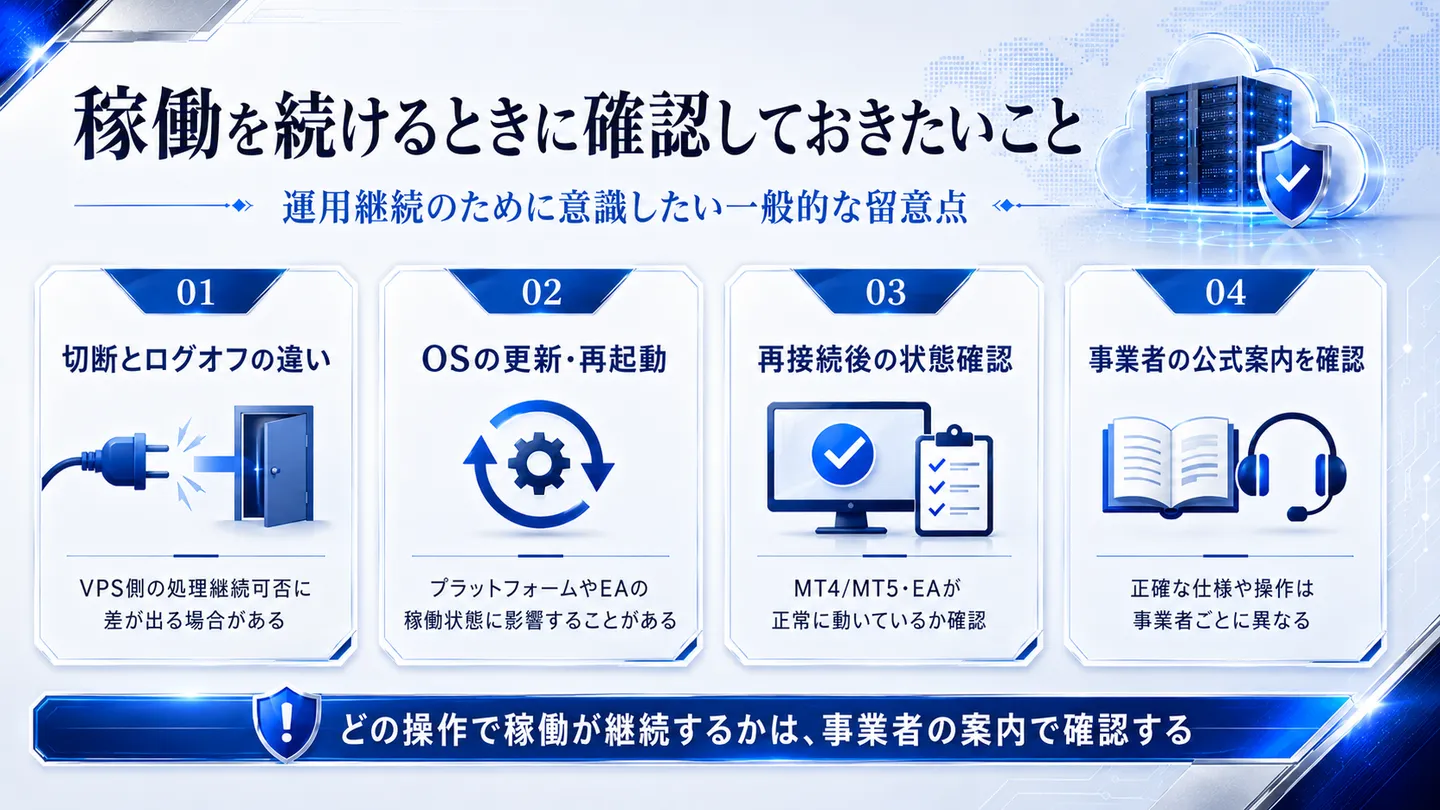
Some matters worth bearing in mind in continuing operation after setting an EA running are listed below. In every case the specific behaviour differs by provider and by OS, so confirmation in official information is a premise.
- The difference between ending the connection (disconnecting) and logging off: a VPS is sometimes used as an arrangement that can continue processing on the server side even when the connection with the device at hand is ended. However, the behaviour can differ between simply cutting the connection (disconnecting) and logging off. Please confirm in the provider’s guidance which operation leaves the processing on the VPS side continuing.
- The effect of OS updates and restarts: when the OS on the VPS is updated or restarted, this can affect the running state of the platform and the EA. On the handling of updates and restarts, and on the behaviour after a restart, it is advisable to confirm matters in advance in the official information of the provider and of the OS.
All of these are general points to note; for the exact specifications and operations, please follow the official information of the provider you have contracted with and of each piece of software.
Checking the risks and the premises
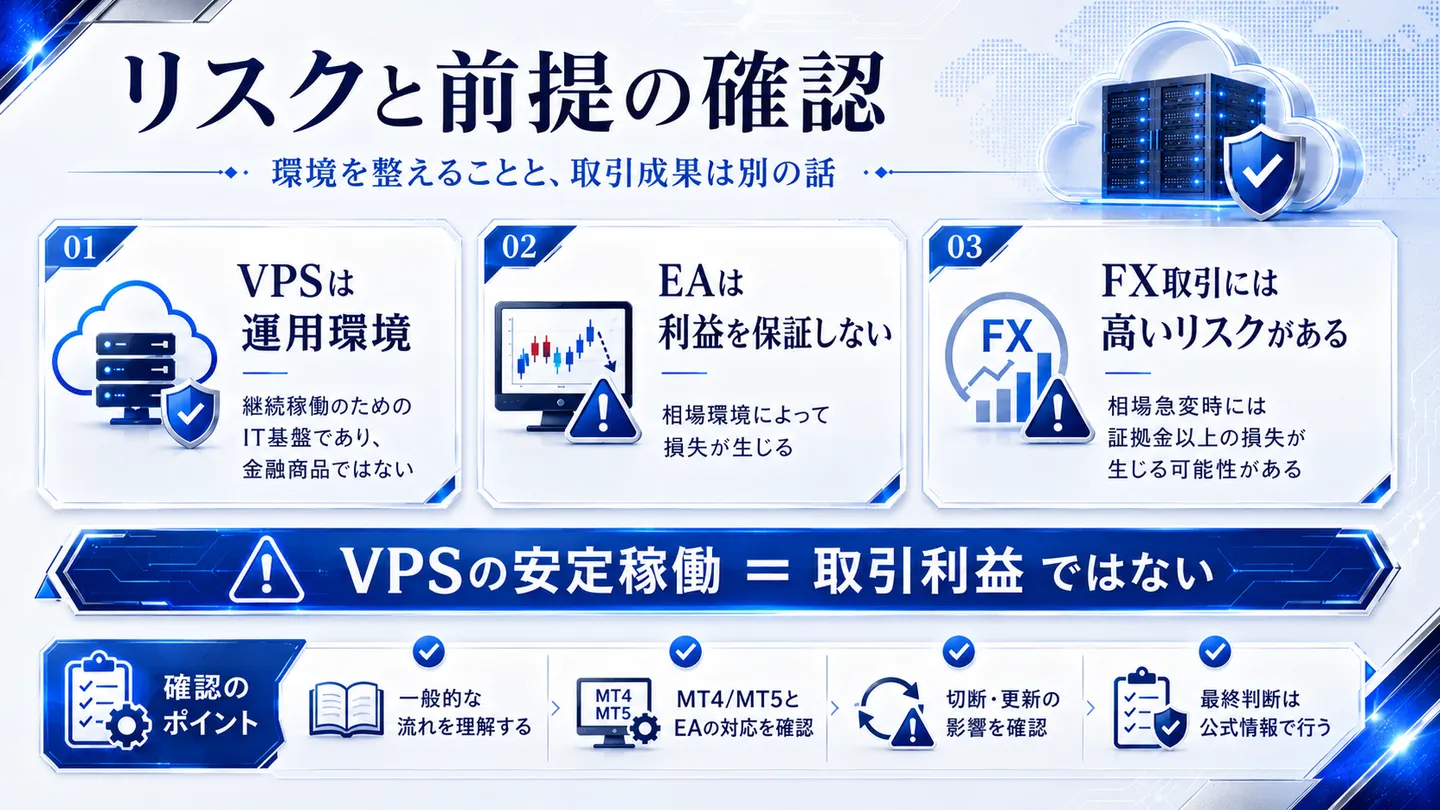
The risks worth confirming as premises when starting to use a VPS for an EA are organised below.
First, to repeat, the operating environment (a VPS) running stably and profits arising in trading are separate matters. Even if you set up the VPS in accordance with the steps and set the EA running, that does not mean it leads to profits in trading.
An EA (automated trading) places orders in accordance with rules set in advance, and it does not guarantee profits. Depending on the market environment, losses arise.
Also, trading that uses an EA, being FX trading, has the risks of FX as its premise. According to information published by the Financial Services Agency, FX (foreign exchange margin trading, 外国為替証拠金取引) is treated as a high-risk form of trading in which large losses exceeding the margin deposited may arise. It is stated that when the market moves sharply, losses exceeding the amount of the margin may arise, and that losses exceeding the amount of the margin may arise even where loss cut (ロスカット) rules have been applied. Please take as a premise that this is trading in which neither the principal nor profits are guaranteed. Even where an EA places orders automatically, these risks do not disappear.
In addition, a VPS is not a financial product, but one of the general arrangements of information technology. It is an operating environment for running an EA and a platform continuously, and it does not in itself bear on the profit and loss of trading. Any final decision on opening an account, on trading, or on using a service should be made by the reader after confirming the official information of each provider and FX company, and information published by public bodies such as the Financial Services Agency.
Points to check
The points worth bearing in mind when starting to use a VPS for an EA are summarised below.
- The general flow of using a VPS can be organised in the order of the application and the receipt of the connection details, the remote desktop connection, the installation of MT4/MT5 and logging in, the placing and enabling of the EA, and checking that it is running.
- Because the operating screens and the names of buttons and folders at each step differ according to the provider, the OS and the version of the platform, proceed while also using the official procedures.
- Because EAs for MT4 and EAs for MT5 are not compatible, confirm before placing the EA that the platform and the EA correspond to each other.
- The difference between disconnecting and logging off, and the effect of OS updates and restarts, are confirmed with the provider and in official information.
- Stable running of the operating environment (a VPS) and the profit and loss of trading are separate matters, and an EA does not guarantee profits.
Common questions to check
What steps are there from the application to the EA running?
Generally the flow is (1) applying for a VPS and receiving the connection details, (2) connecting by remote desktop, (3) installing MT4/MT5 and logging in to the account, (4) placing the EA and enabling automated trading, and (5) checking that it is running. However, because the specific operating screens and the names of buttons differ according to the provider, the OS and the version of the platform, it is a premise that you proceed while also using the official procedures of each provider and each piece of software.
What is a remote desktop connection?
It is an arrangement for calling up and operating the screen of a computer in a distant location (such as a VPS) from the device at hand. Windows comes with an app for connecting as standard, and there are also apps officially presented for macOS and for mobile. Please confirm the connection destination and the connection details in the official guidance of the provider you have contracted with.
Will the EA keep running even if I close the computer at hand?
A VPS is sometimes used as an arrangement that can continue processing on the server side even when the connection with the device at hand is ended. However, the behaviour can differ between cutting the connection (disconnecting) and logging off, and it can also be affected by OS updates and restarts. Please confirm with the provider and in official information which operation leaves the processing on the VPS side continuing.
If I set up the environment in accordance with the steps, will the EA produce profits?
No. The operating environment (a VPS) running stably and profits arising in trading are separate matters. An EA (automated trading) is something that gives rise to losses depending on the market environment, and it does not guarantee profits. Also, FX is trading in which, through leverage (レバレッジ), losses exceeding the margin deposited may arise (information published by the Financial Services Agency). Setting up the environment and the profit and loss of trading need to be thought about separately.
Should I put the EA in MT4 or in MT5?
It depends on whether the EA you wish to use is for MT4 or for MT5. Because EAs for MT4 and EAs for MT5 are not compatible, please confirm before placing the EA that the platform being installed and the EA to be used correspond to each other. For the differences between MT4 and MT5 and the viewpoints on supported platforms, please refer to the related article.
In closing
The flow of starting to use a VPS for an EA can generally be organised into the steps of the application and the receipt of the connection details, the remote desktop connection, the installation of MT4/MT5, the placing and enabling of the EA, and checking that it is running. This article brings together that general flow and the points worth checking at each step; it neither recommends the use of any particular provider or service, nor promises results in trading.
The specific operating screens and the names of buttons and folders at each step differ according to the provider contracted with, the OS, and the version of the platform. Please carry out the actual operations together with each provider’s official guidance and the official procedures for each piece of software. Any final decision on opening an account, on trading, or on using a service should be made by the reader after confirming official information for themselves.
On the basics of a VPS and how to choose one, the comparison with a home computer, the differences between MT4 and MT5, and the details of the risks of FX trading, the following articles may also be of use.
- The operating environment to check when using FX automated trading (EA), and the basics of a VPS
- Points to check when looking at FX companies that support MT4/MT5
- Risks of FX trading and points worth checking
Always check the latest trading conditions, fees and campaigns on each company’s official site. The information on this page is as at the time it was written.